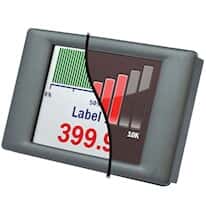
Display connects to a PC via USB port for customization of color, units, logo, and graphical or numerical representation of measurements
Free PanelPilot software download is compatible with Windows® XP, 2000, Vista, and Windows 7
Panel mount with the included hardware, or leave free standing
Screw terminal connections for scaleable 0 to 40 VDC sensor input
1 year warranty
More About this Item
These versatile color TFT graphic meter displays are user-programmable to show a variety of styles previously supported by traditional panel meters. Easily configure with the free PanelPilot software to display information through bar graph, analog, or numeric meter styles with user-defined color, text, units, and input scaling. A library of predefined elements such as meters, buttons, and switches is constantly being updated and expanded. USB to micro-USB cable is required for PC connection and programming. A standard null-modem cable will not power the unit as well as transfer data for programming, please order the 18000-58 interface cable (not included). Once programmed, the display can be left connected to a PC and powered through the USB port, or disconnected and powered through the 4 to 30 VDC terminal and mounted where needed. A USB to AC power adapter (part number 18000-59) is also available so you may plug the meter into a standard North American wall outlet.
Order the thermocouple add-on board (part number 18000-24) to obtain temperature measurements with the meter—Type K thermocouple probe is included with the board!
For more hostile environments, an IP67 (NEMA 6) waterproof version is available under part number 18000-23.
Configuring your PanelPilot display is simple; just follow these five easy steps:
1. Download the PanelPilot software (see zip file in the Technical Resources section) 2. Connect your display to the USB port of your PC using cable 18000-58 (must be purchased separately, please see Accessories section) 3. Customize by selecting from an ever-increasing library of configurations 4. Test your setup on the software before uploading the to your display. 5. Upload the configuration to your meter, and use in your application!